
 This feature is in Beta mode. Information may change as the feature is updated for formal release. This feature is in Beta mode. Information may change as the feature is updated for formal release. |
Some Apporto customers run the virtual desktop on Chromebooks in kiosk mode. This helps prevent unintentionally exiting Apporto, as is possible in Apporto standard browser mode.
Kiosk mode is described in the article on accessing the Apporto app store.
There are some minor differences between kiosk mode and standard browser mode:
- Appearance
- Browser behavior
Appearance
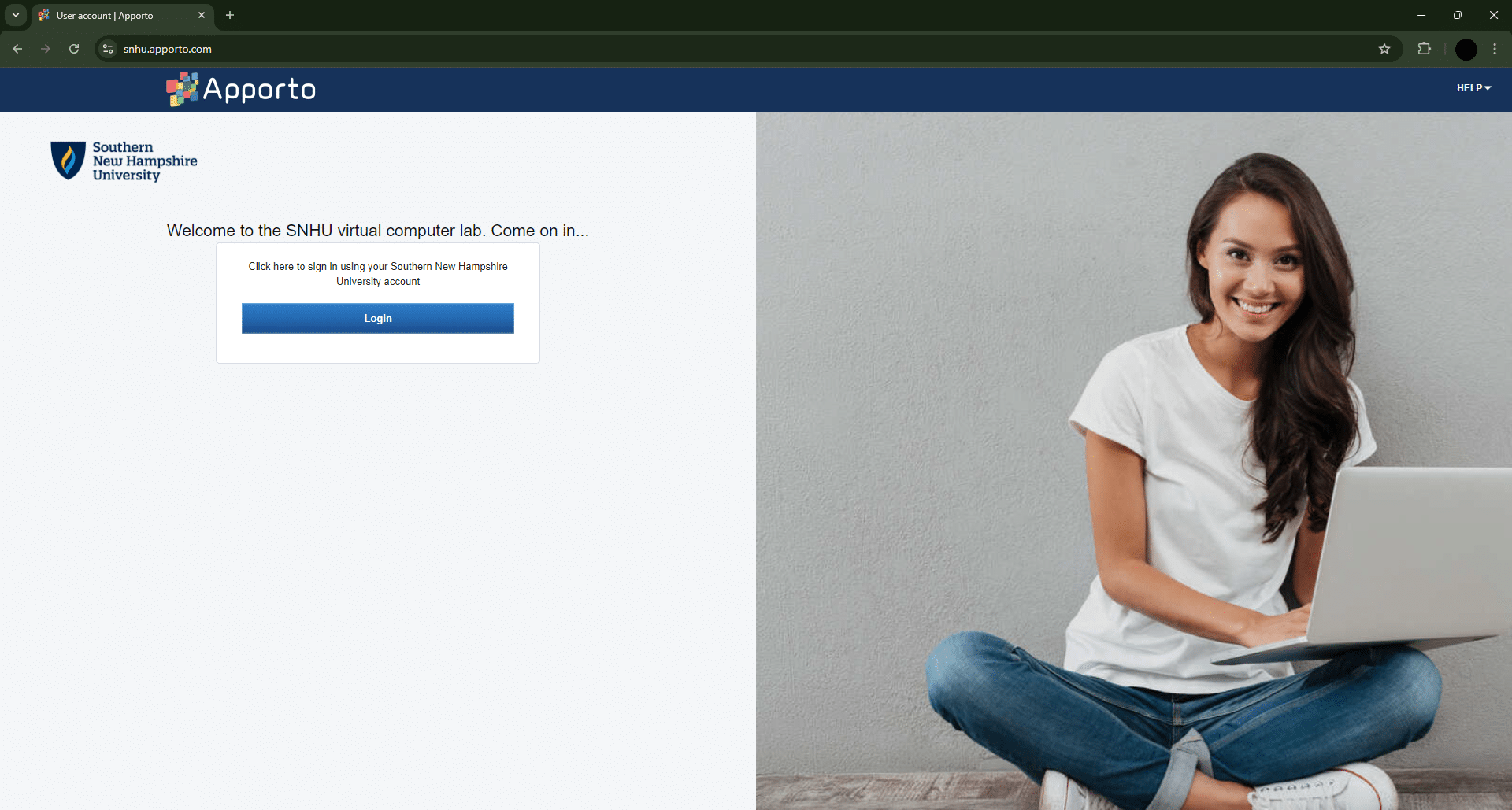
The standard mode of Apporto is loaded in a browser, as shown below.
When running in kiosk mode, Apporto is viewed in full screen without the browser address bar and frame. 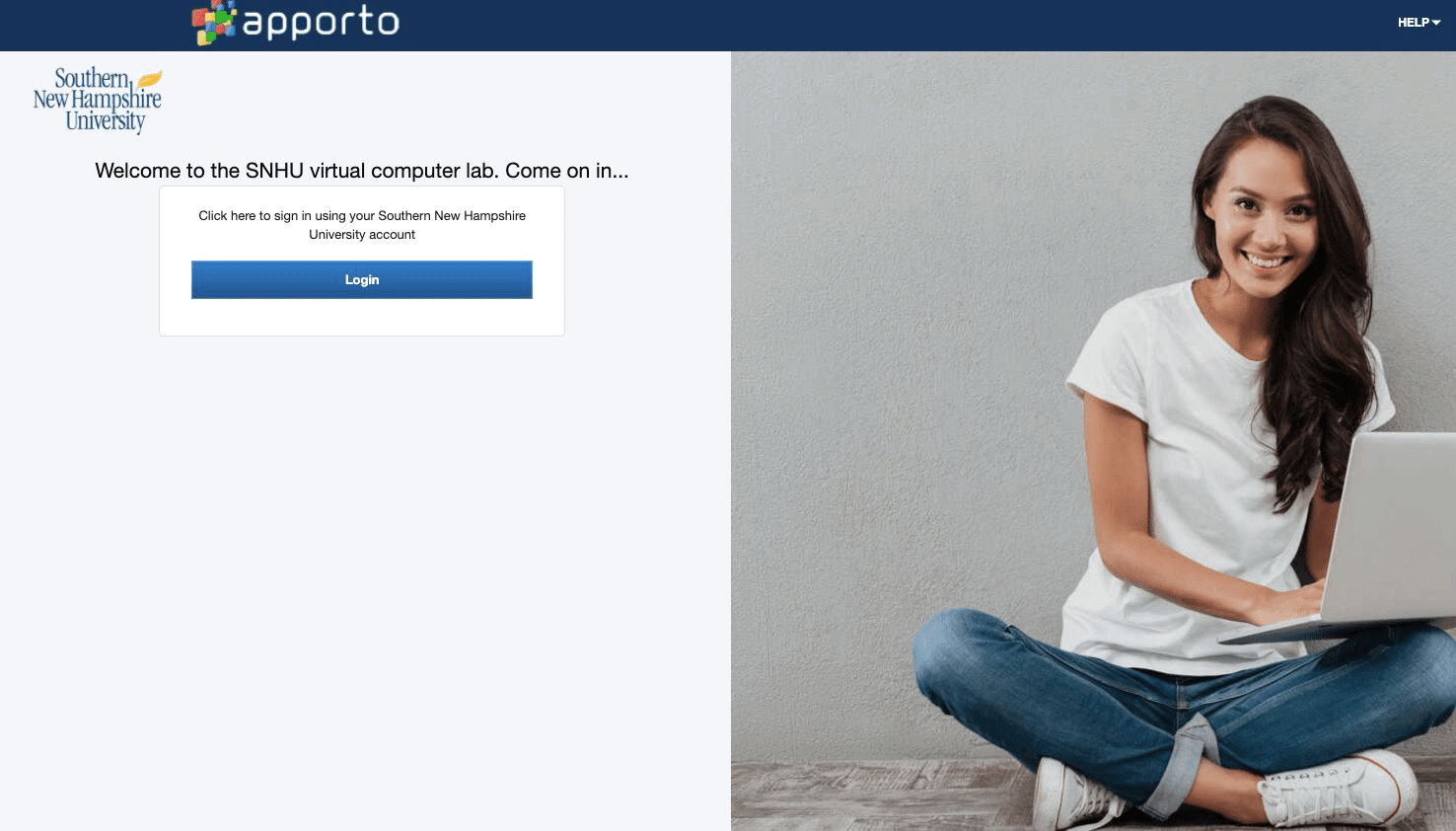
 ,
,  ,
,  ,
,  ) as well as hotkey functions such as the ones shown below.
  In kiosk mode, the click/touch interactions will not be visible because the browser bar is hidden. Also, the following browser hotkey functions are disabled:
Browser behavior
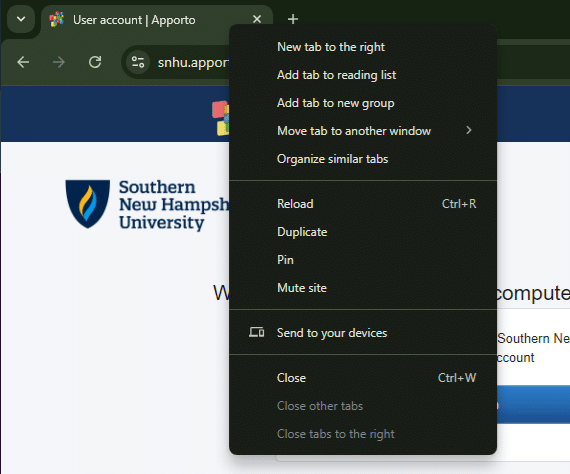
In standard mode, users have all default browser functions available. This includes click/touch interactions (e.g.,, , , ) as well as hotkey functions such as the ones shown below. In kiosk mode, the click/touch interactions will not be visible because the browser bar is hidden. Also, the following browser hotkey functions are disabled:
- Ctrl+T for a new tab
- Ctrl+W to close the current tab/window
Comments
0 comments
Please sign in to leave a comment.