
Faculty may present to a group of students by sharing their desktop and optionally enabling their microphone. Students have an option to view the faculty desktop “in page” or in a separate browser tab.
Using Presenter Mode
Login
Using your preferred web browser, navigate to the web address provided by your administrator (e.g., “mycollege.apporto.com”) and log in to the system using your Faculty credentials.
Click on  to access the Apporto App Store.
Select your App or Desktop
Locate the desired app or desktop and click Launch.
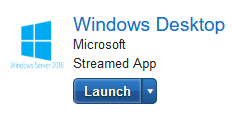
The selected app or desktop opens in a new browser tab.
Start Presenter Mode
Select the  Presenter Mode option (under More) in the menu bar.
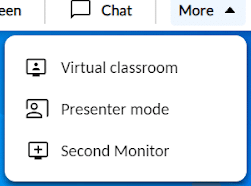
Presenter Mode is only available for Faculty users with permissions to groups of 200 users or fewer.
Select the group (e.g., course, section) you’d like to share your desktop with.
Toggle the microphone option ON if you want the group to hear you speak.
Your microphone must be enabled in browser settings in order for Apporto to access it.
Click Share screen to begin presenting.
The system will confirm that sharing has begun.
Students in the selected group will see a notification that Faculty would like to share their screen.
If a student selects “New tab”, the shared screen will open in a new browser tab.
If a student selects “In page”, the shared screen will open as a window overlaying the desktop – enabling students to follow along with the instructor while working in the desktop.
Students may resize the “in page” view by clicking and dragging the bottom left corner.
The “in page” view can be moved around the desktop by cursoring over the gray title bar, clicking to select the window, and dragging it to the desired location.
The “in page” view can be minimized by clicking on the Minimize button or closed by clicking on the Close button.
Students may select Presenter Mode from the menu bar to re-open the shared screen.
Stop Presenting
To stop presenting (and mute your microphone), click Stop sharing from the onscreen status bar.
Related to
Comments
0 comments
Please sign in to leave a comment.