
You may customize your Apporto instance by adding a custom logo. You can do this by uploading a logo image in the Branding Setup page. Your logo will appear in the upper left corner of the App Store.
The ideal logo image has an aspect ratio of 5:2 (e.g. is 250 x 100 pixels). PNG and JPEG are the most popular accepted formats.
Add a Logo
Upload Logo
Using your preferred web browser, navigate to the URL for your Apporto system, for example, “mycollege.apporto.com”, and log in to the system using your Admin credentials.
Click the Setup  icon in the Navigation panel.
The ‘Setup’ submenu displays.
Click Branding
The ‘Branding’ popup displays.
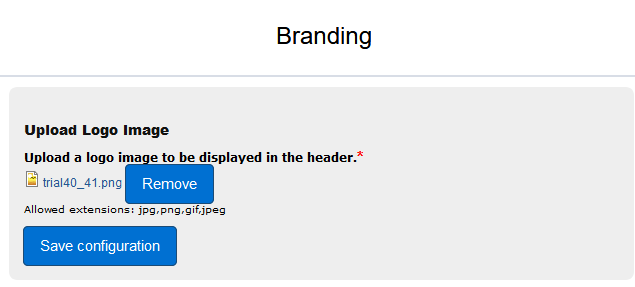
Click Choose File
The select file dialog box displays.
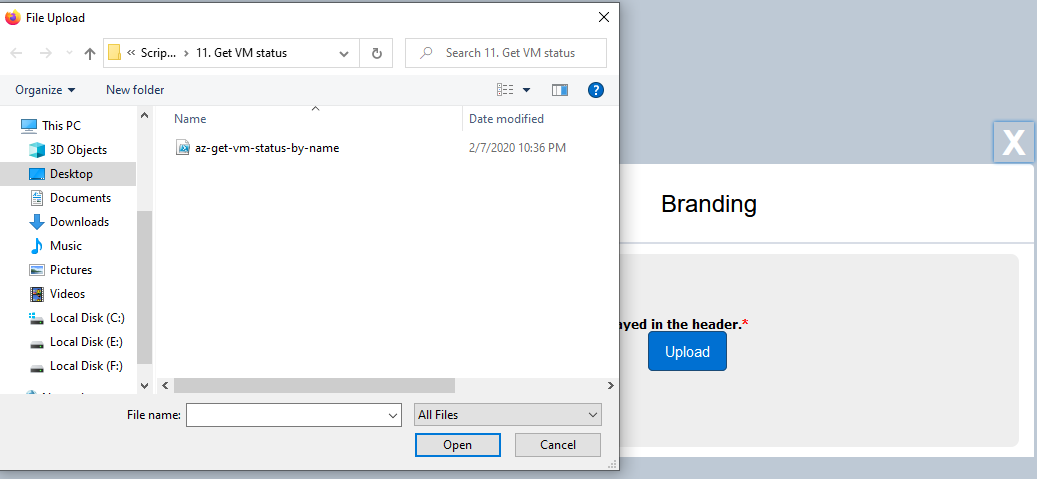
Select the logo file to upload and click Open
The Branding popup updates to show your selected logo file.
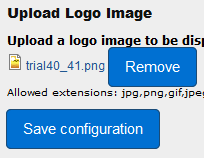
Click Upload
The image file is uploaded.
Click Save Configuration
A confirmation message displays.
To view the changes, navigate back to your login page (eg. “mycollege.apporto.com”) or the App Store.
Your new logo will appear in the upper left corner of the App Store.

Related to
- Setup.jpg9 KB
Comments
0 comments
Please sign in to leave a comment.