
You may customize the default order in which apps and desktops appear in the App Store.
You can do this on the App Store Configuration page.
Open App Store Configuration
Using your preferred web browser, navigate to the URL for your Apporto instance (eg. “mycollege.apporto.com”) and log in using your Admin credentials.
Click the Setup  icon in the Navigation panel.
The ‘Setup’ submenu displays.
Click App Store
The ‘App Store Configuration’ page displays.
Define App Order
Enter a number (eg. 1, 2, 3, etc.) to define the default order in which apps and desktops appear in the App Store.
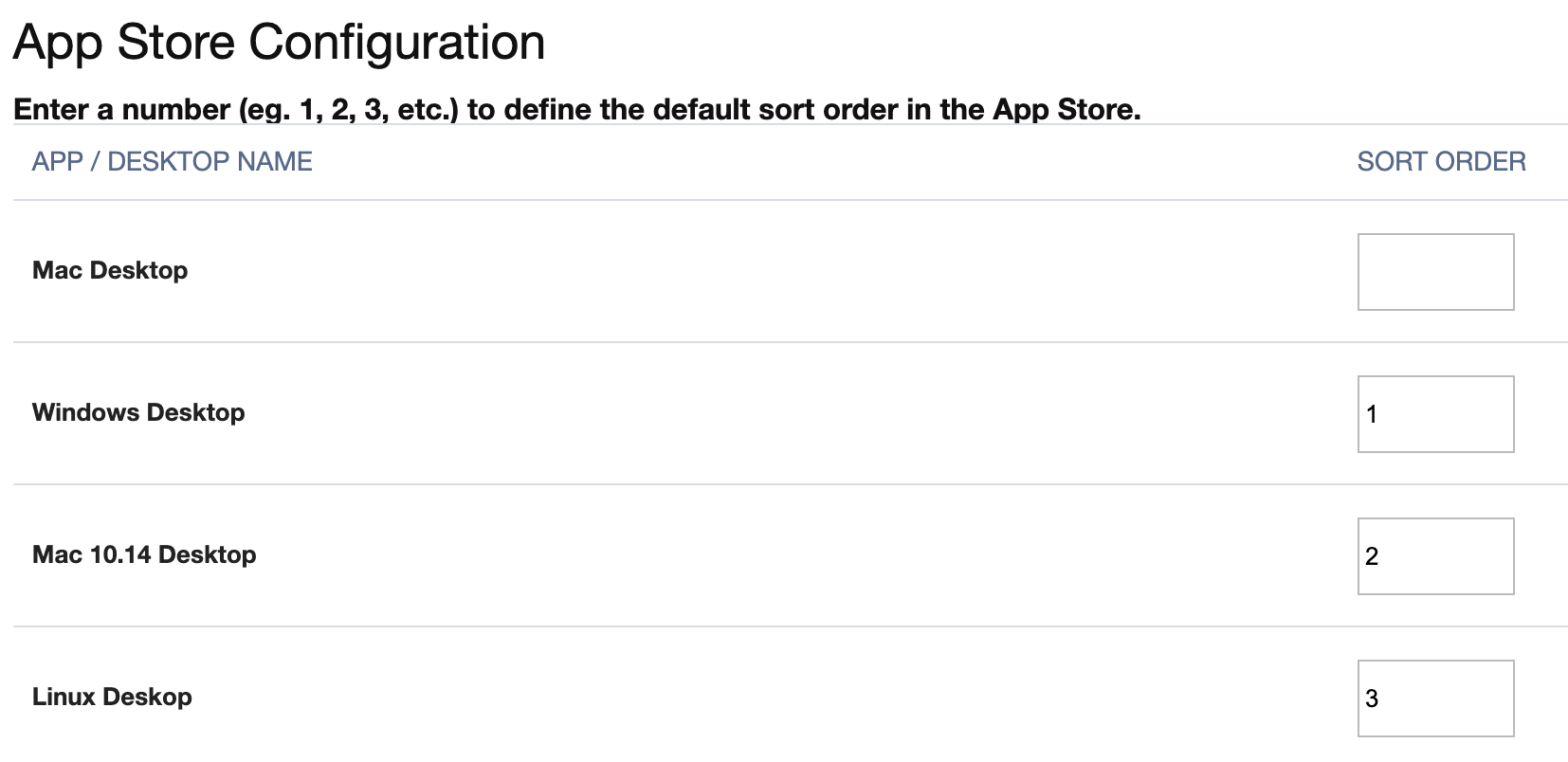
If there is a tie, apps will be sorted alphabetically. Unnumbered apps will appear after numbered apps.
Click Submit to save your changes.
View the App Store
View App Store
Click the App Store  menu option.
The App Store displays, and apps appear in the defined order by default.
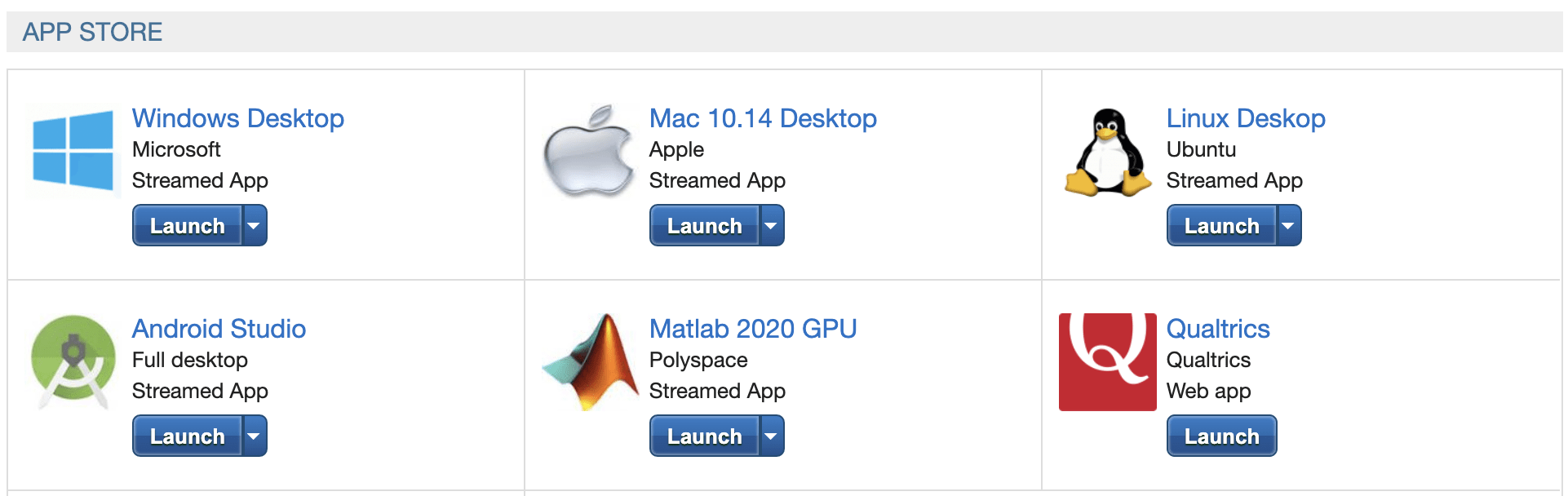
Users may change the sort order in the session by clicking on buttons to Sort Alphabetically or Sort by Frequency.
Users may search for an app by entering a text string in the search box.
Related to
- Setup-1.jpg8 KB
Comments
0 comments
Please sign in to leave a comment.