
To discourage users from capturing screenshots of sensitive data, you may wish to configure an optional Watermark. If enabled, the watermark overlays the user’s cloud desktop.
The watermark may be an image or text. If text is selected, you may choose between the user’s full name or email. Additional configurations are available for the font size, color, orientation, and transparency.
The Watermark feature is available with the Apporto Zero Trust Desktop. Contact sales@apporto.com to learn more about this offering.
Configure a Watermark
Using your preferred web browser, navigate to the URL for your Apporto system, for example, “mycollege.apporto.com”, and log in to the system using your Admin credentials.
Click the Setup  icon in the Navigation panel.
The ‘Setup’ submenu displays.
Click Watermark
The ‘Watermark’ Setup page displays:
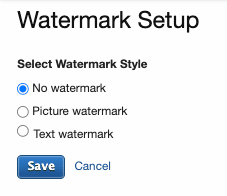
By default, No watermark is selected.
If you want a picture watermark, select Picture watermark and follow the prompt to upload an image:
Check Washout to reduce the image contrast and mute colors.
If you want a text watermark, select Text watermark.
Select one of the two available text options: User Name or User Email.
Enter a Color code or choose a color from the palette.
Check Semi-transparent if you want the text to appear partially transparent.
Click Save to save your changes.
To test your watermark, navigate to the App Store and launch an app or desktop.
The watermark can be applied to all users or just for specific groups or individuals. Please see Configuring Desktop Features for instructions.
Related to
- Watermark-picture.jpg3 KB
- Setup.jpg8 KB
- Watermark-text.jpg10 KB
- Watermark-desktop.jpg100 KB
Comments
0 comments
Please sign in to leave a comment.