
User management includes the ability to add, edit, and remove user accounts.
Use the information in this guide to learn how to:
- View the user list
- Modify the list columns
- Filter the user list
For information on other user management features, visit the related articles section at the bottom of this page.
View the user list
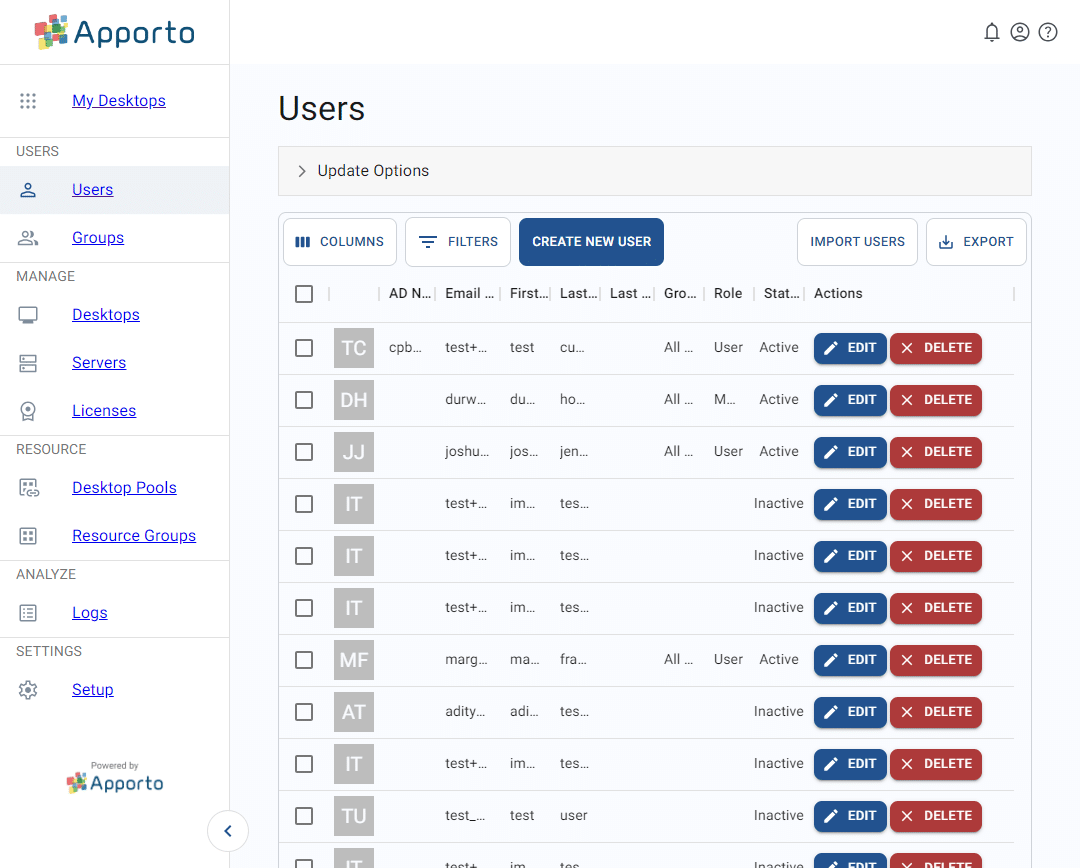
The Users page shows a list of all the users who have accounts in your Apporto instance. To access this page, follow the steps below.
- Using a supported Web browser, navigate to the Web address provided by your administrator.
The link should resemble yourorganization.apporto.com, where yourorganization is the name of your company. - Log in to the system using your credentials.
- Click users or the
 icon in the navigation panel.
Modify the list columns
For each user in the list, you will see available data in the enabled columns. For information on how to adjust the visible columns, see the article on working with lists.
Filter the user list
The system displays all users by default. If desired, you can filter the list to display only a subset of users. For information on how to filter the user list, see the article on working with lists.
Related articles
Related to
Comments
0 comments
Please sign in to leave a comment.