
For on-premises instances, the third tab of the Servers screen lets you configure the script file for cloning an on-premises server.
Use the information in this guide to learn how to configure on-premises server cloning. You may also refer to the article on configuring persistent virtual machine (VM) settings.
Configure on-premises server cloning
If on-premises cloning configuration is enabled in Setup, a third tab will show on the Servers screen. This tab provides options for cloning script generation.
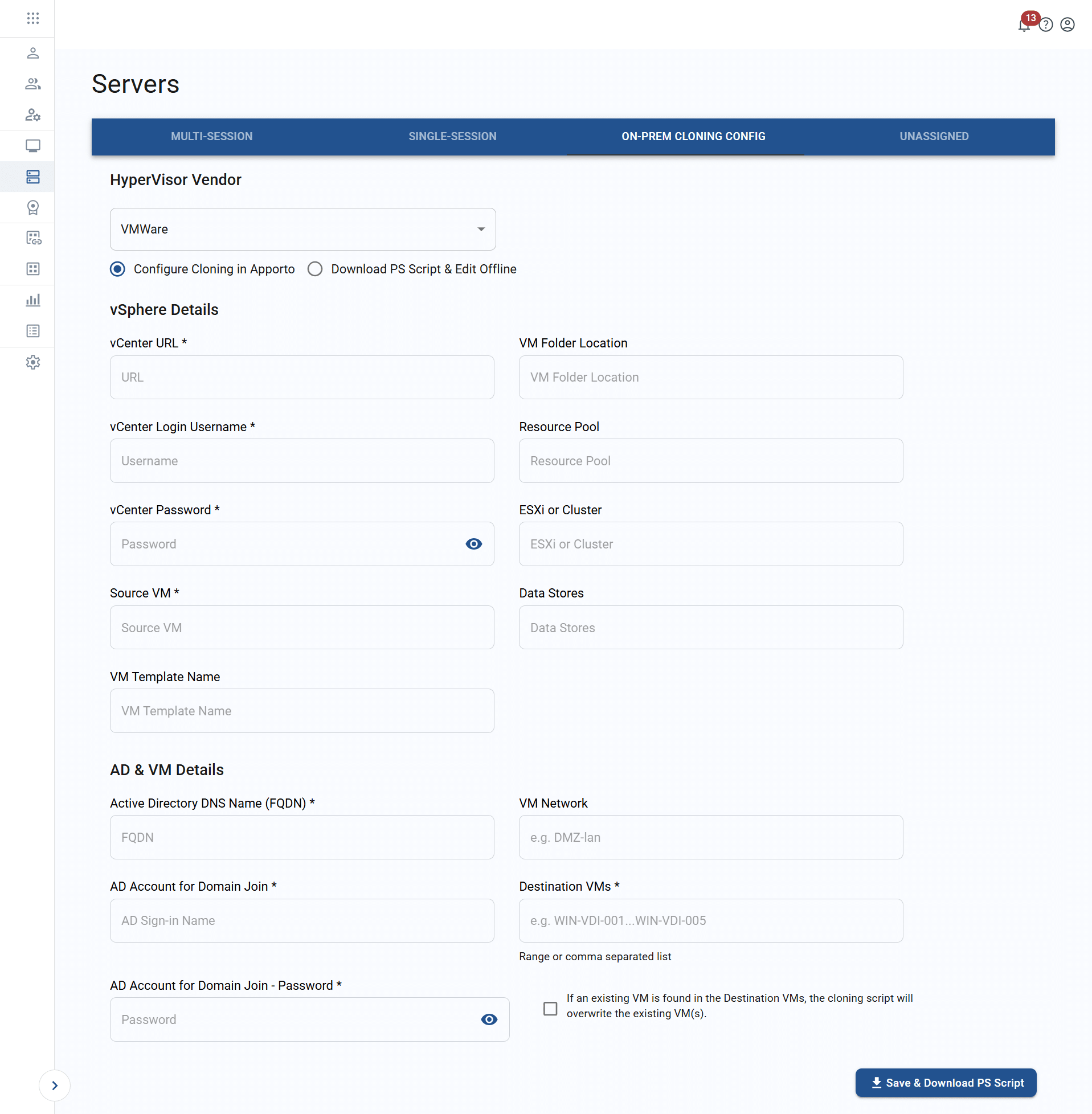
The table below shows the values that can be used in cloning configuration.
| Field | Datatype | Required? | Notes |
|---|---|---|---|
| Hypervisor vendor | Lookup value | Yes |
|
| Cloning method | Boolean | Yes |
|
| vCenter URL | String | Yes | |
| vCenter login username | String | Yes | |
| vCenter password | String | Yes | |
| Source VM | String | Yes | |
| VM template name | String | No | |
| VM folder location | String | No | |
| Resource pool | String | No | |
| ESXi or cluster | String | No | |
| Data stores | String | No | |
| Active Directory DNS name (FQDN) | String | Yes | |
| AD account for domain join | String | Yes | |
| AD account for domain join password | String | Yes | |
| VM network | String | No | |
| Destination VMs | String | Yes | Range or comma-separated list |
| Script overwrite | Boolean | No | If enabled, cloning scripts will overwrite existing VMs |
To generate a cloning script, follow the steps below.
- Log in to the system using your credentials.
- Click servers or the
 icon in the navigation panel.
 - Click on the “on-prem cloning config” tab.
- Select your preferred hypervisor vendor from the list to determine which form fields should show.
- Select your preferred cloning method:
-
Configure cloning in Apporto – This option will be selected by default. Choose this option to use the form fields to create a customized script.
- Enter the appropriate values.
- Click save & download PS script to generate the customized script file and save it to local file storage.
-
Download PS script & edit offline – Choose this option to download a generic script that can be edited offline.
-
Click save & download PS script. The system will display a pop-up message, prompting you to confirm the download.
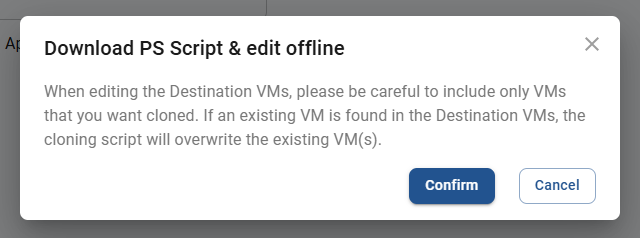
- Click confirm to generate the script file and save to local file storage, or you may click cancel to abort the process.
-
-
Related to
Comments
0 comments
Please sign in to leave a comment.