
The Apporto Calendar page houses several types of scheduled server events. For information on creating and updating events, see the article on managing events.
Use the information in this guide to learn how to:
- View a calendar month
- View a calendar week
- View an event’s details
View a calendar month
The scheduler offers two views: month and week.
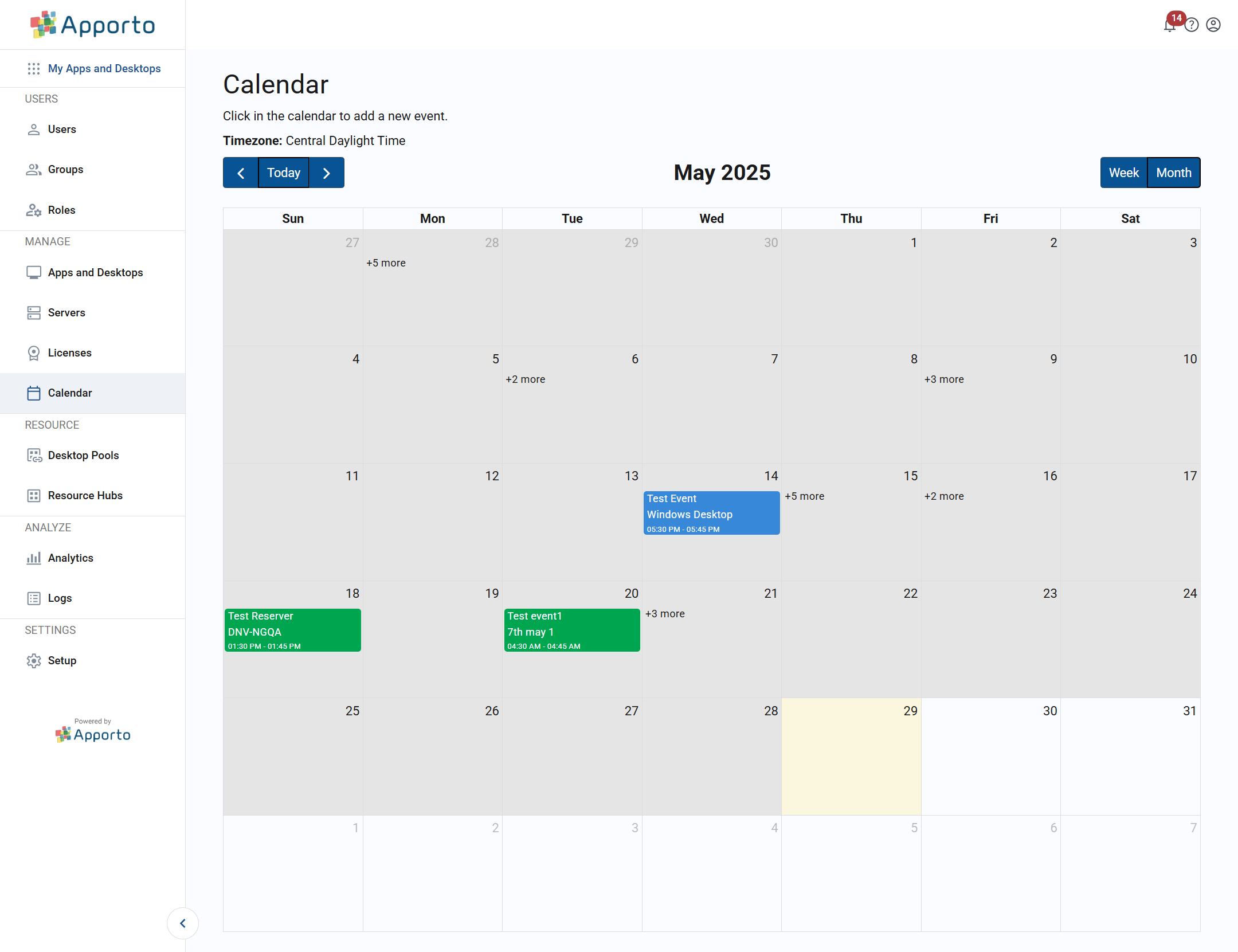
To access your calendar, follow the steps below.
- Click calendar or the
 icon in the navigation panel.
 - The calendar will load in the month view by default, displaying the current month with today’s date highlighted.
View a calendar week
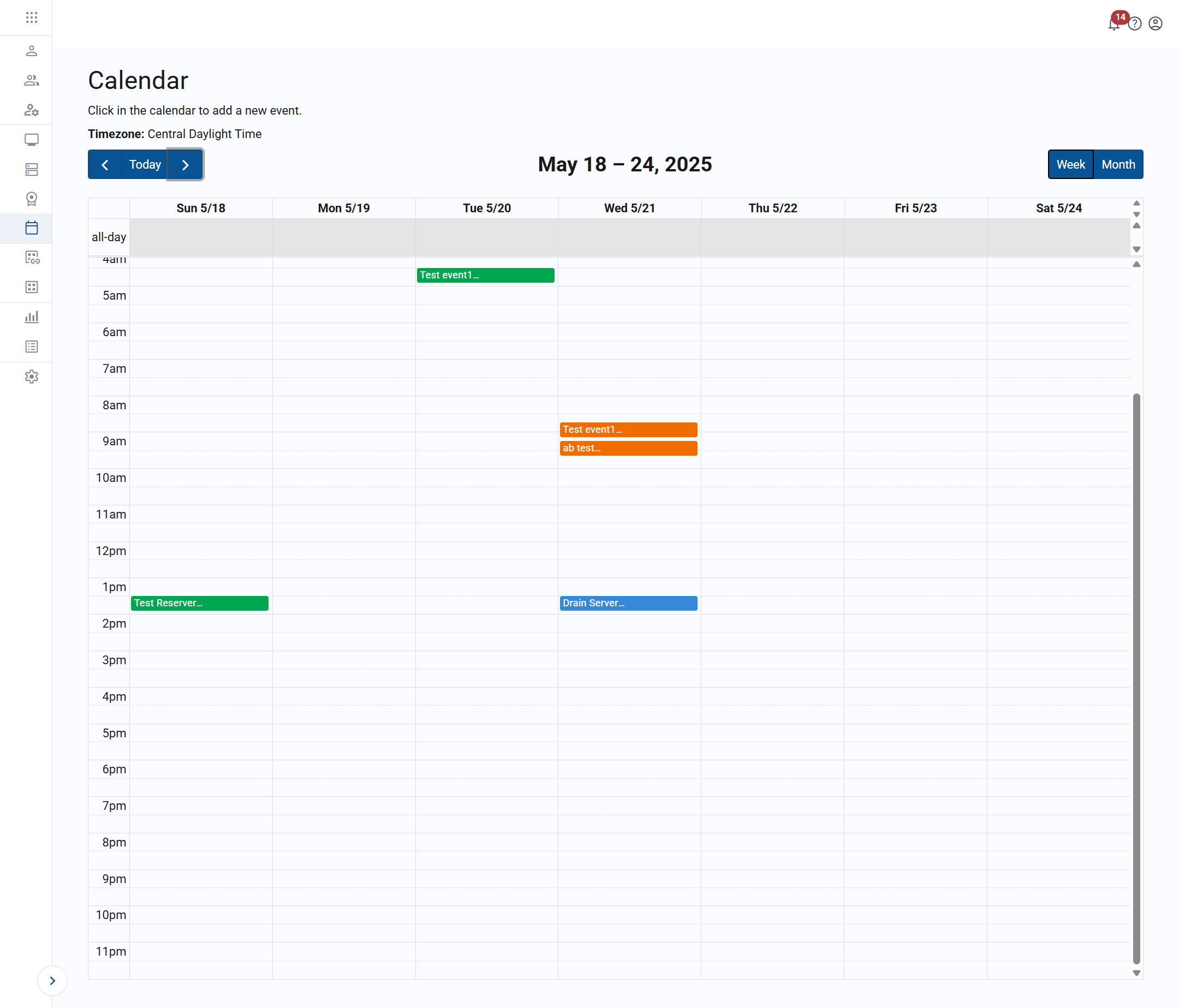
To view a calendar week, follow the steps below.
- After loading the default calendar view, click week to switch to a single-week view.
- To change the selected week:
- Click
 to go back a week.
 - Click
 to go forward a week
 - Click today to select the current week.
- Click
View an event’s details
Scheduled events will display on either the month or week view of the calendar. To view an event’s details, follow the steps below.
-
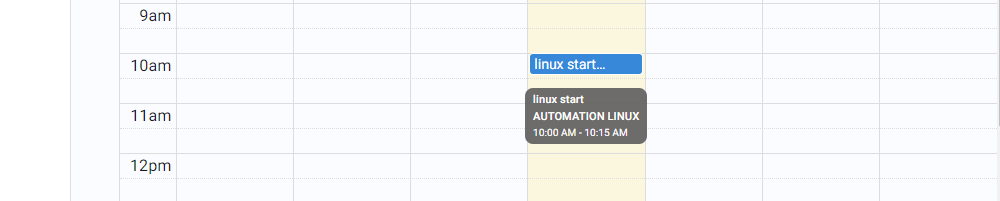
Hover over an event on the calendar to preview its details. In the month view, the event card and the hover may show the same information.
-
Click on an event card to see a larger view. The event’s details will appear in a pop-up window.
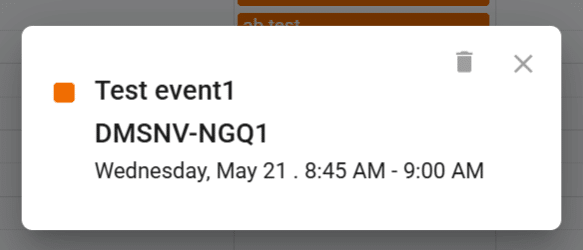
- If needed, you may click the edit icon
 to update event information or click the trash can icon
  to remove the event. See the article on managing calendar events for more details.
 - Click the
 to close the pop-up.
Related to
Comments
0 comments
Please sign in to leave a comment.