
You may customize your Apporto instance by adding your own logo. This logo will appear at the top of the navigation drawer and be visible to all users.
To add a logo, follow the steps below:
Click setup or the
 icon in the navigation panel to view the Setup screen.
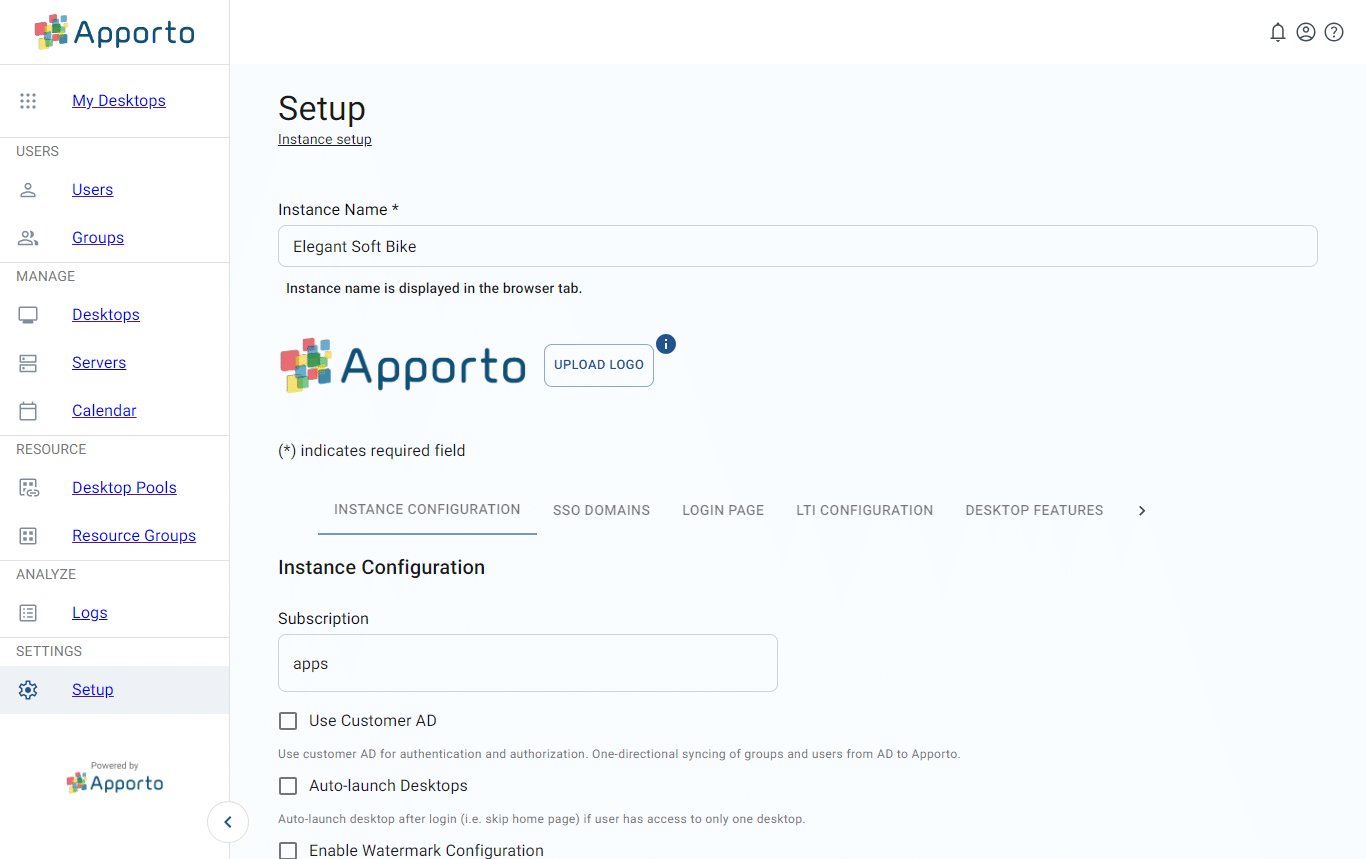
- Click upload logo to trigger the file manager.
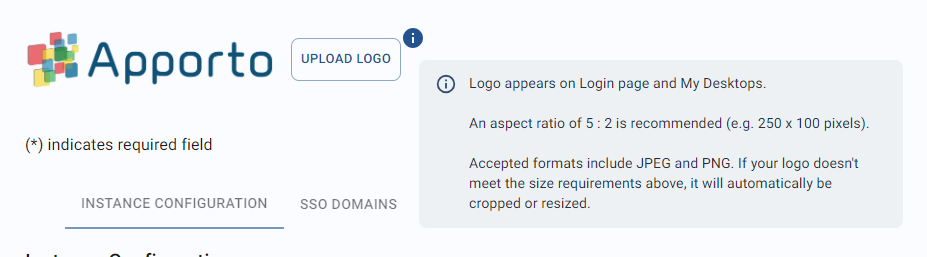
Select a file from your local storage. The ideal logo image has an aspect ratio of 5:2 (e.g., 250 x 100 pixels) and is a PNG or JPEG file.
The system will display a preview of your logo and prompt you to save the change.
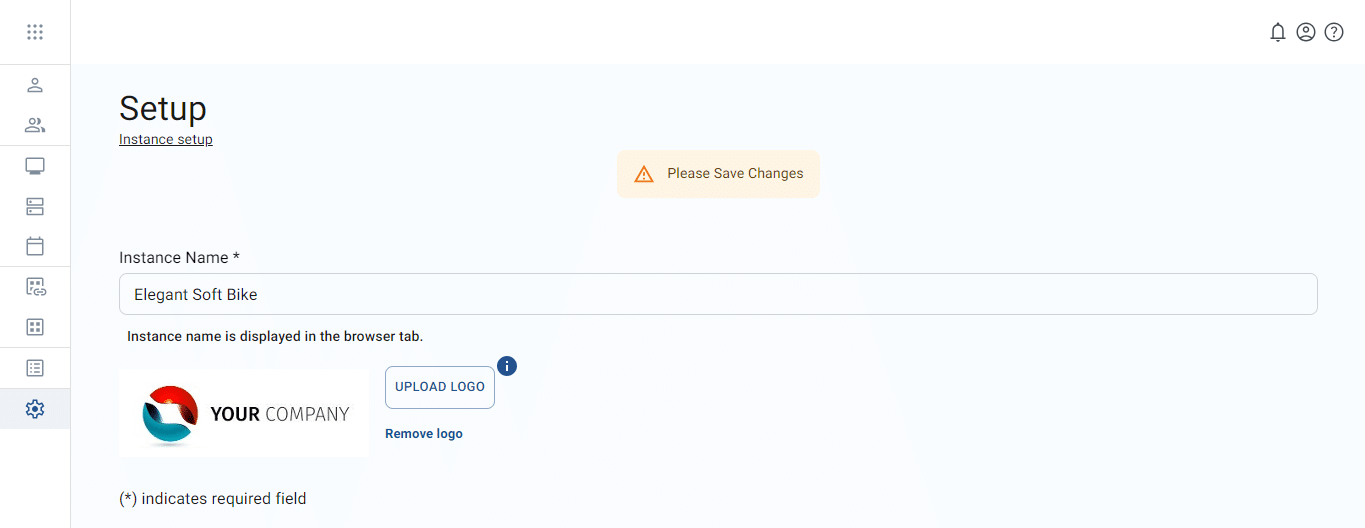
- To complete the update:
- If you are not satisfied with the preview, click remove logo to remove the current file and then click upload logo again to import a new image.
Click save changes to activate the logo in your Apporto instance. The logo will now appear at the top of the navigation drawer.
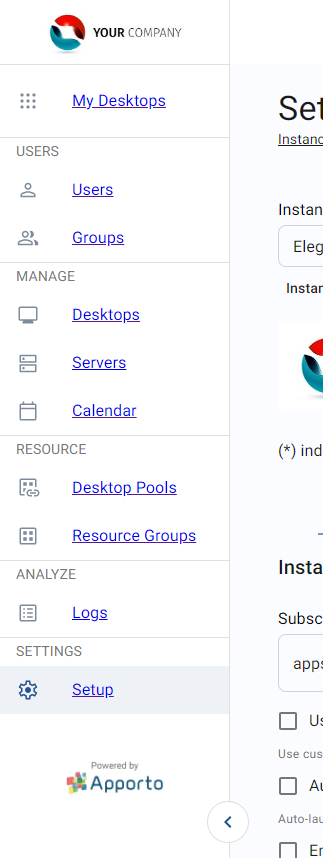
- You may change the logo at any time by repeating the steps above.
Related to
Comments
0 comments
Please sign in to leave a comment.