
Admins can customize Apporto rules for deprovisioning and deleting users within the Setup part of the system.
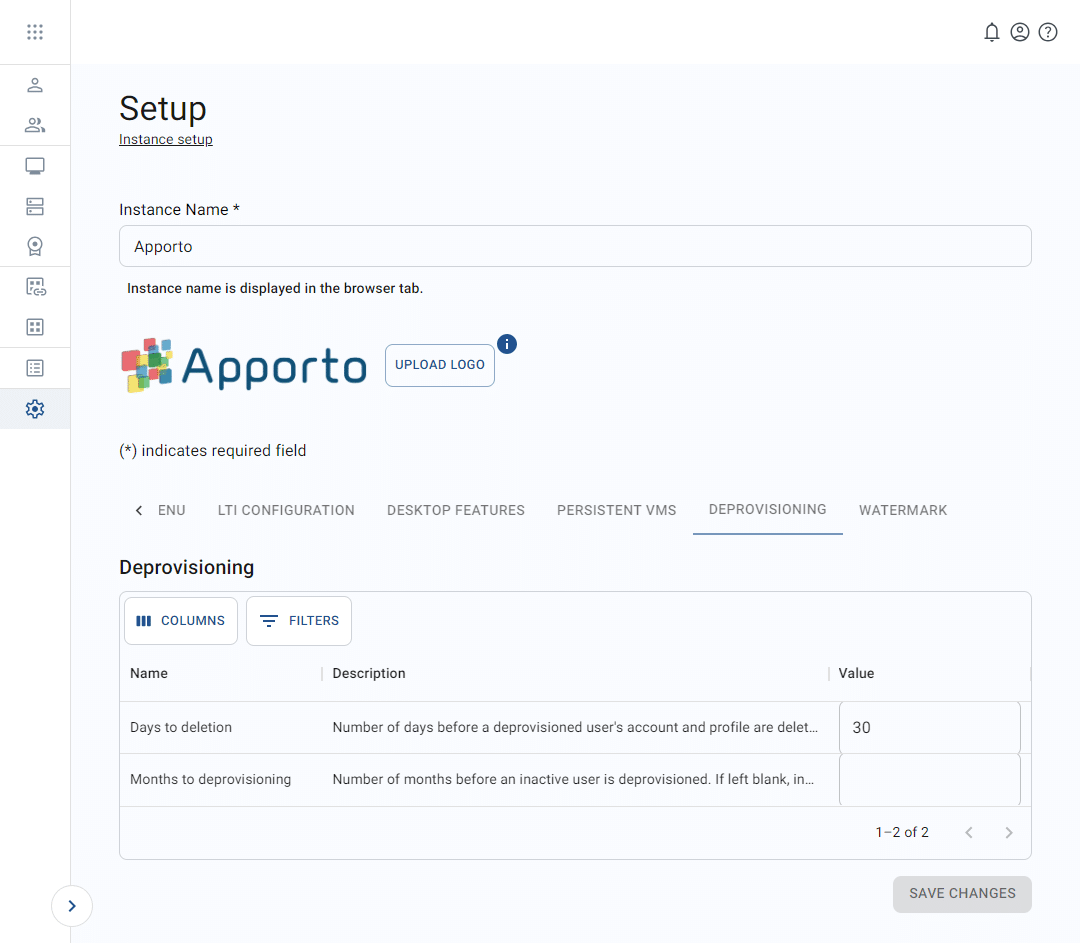
To access the rule settings, follow the steps below.
- Using a supported Web browser, navigate to the Web address provided by your administrator. The link should resemble yourorganization.apporto.com, where yourorganization is the name of your company.
- Log in to the system using your credentials.
- Click setup or the
 icon in the navigation panel.
 - Click on the “deprovisioning” tab and enter the desired values.
- Click save changes to apply the rules.
Configure deprovisioning rules
The following options are available for the “months to deprovisioning” value:
- Blank – This will disable automation.
- Month entry – Enter a value and click save changes to enable the automation. Once a user has been inactive for a set number of months, the user account will be deprovisioned.
Configure deletion rules
The following options are available for the “days to deletion” value:
- Default – The automation is set by default to a 30-day cycle. Once a user has been deprovisioned for 30 days, the user account will be deleted.
- Day entry – Enter a value and click save changes to change the deletion cycle. Once a user has been deprovisioned for the set number of days, the user account will be deleted.
Related to
Comments
0 comments
Please sign in to leave a comment.