
Create a Base Image
The first Persistent Virtual Machine listed (in a grouping of VMs) is the Base Image. It can usually be identified by a VM NAME ending in 000.
To install software and configure the Base Image VM, click the down arrow in the ACTIONS column.
Select Start Server and wait about 30 seconds (AWS) or 2 minutes (Azure) for the servers to start. The state will change from stopped to running.
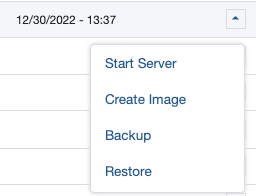
When the server is running, select Launch Server
The app or desktop opens in a new browser tab.
Install the desired software and make any necessary configurations.
Sign out of Windows or close the browser tab when you are finished.
To create a new image, select Create Image
 Creating an image prepares a server for cloning (temporarily removing it from Active Directory, renaming it, etc.) and this usually requires rebooting. Whereas taking a Backup just requires taking a snapshot of the VM.
This process can take 5-120 minutes (AWS) or 10-20 minutes (Azure) depending on the size of the image.
You will be notified by email and in the product (bell icon in the top menu) when the process finishes.
The IMAGE DATE field will be updated with the date and time of the most recently created image (only one image is persisted – the last one created).
Related to
Comments
0 comments
Please sign in to leave a comment.