
Apporto offers settings for customer instances. These control some of Apporto’s default behaviors and user properties.
Use the information in this guide to learn how to:
- Manage instance configuration settings
Manage instance configuration settings
The table below shows the values that are used for Apporto instance configuration.
| Field | Datatype | Required? | Notes |
|---|---|---|---|
| Industry setting | Lookup value | Yes |
|
| Subscription | String | No | Name of secret vault that stores instance hosting information |
| Configure product for hybrid implementation | Boolean | No | Enables on-premises virtualization and streaming features, including the “On-Prem Clusters” tab; hides cloud-specific features |
| Auto-launch apps and desktops | Boolean | No | Bypasses My desktops screen for users with only 1 assigned app/desktop |
Follow the steps below to customize the instance configuration settings.
- Click setup or the
 icon in the navigation panel to view the Setup screen.
 -
If it is not already visible by default, click on the “Instance Configuration” tab in the lower part of the page.
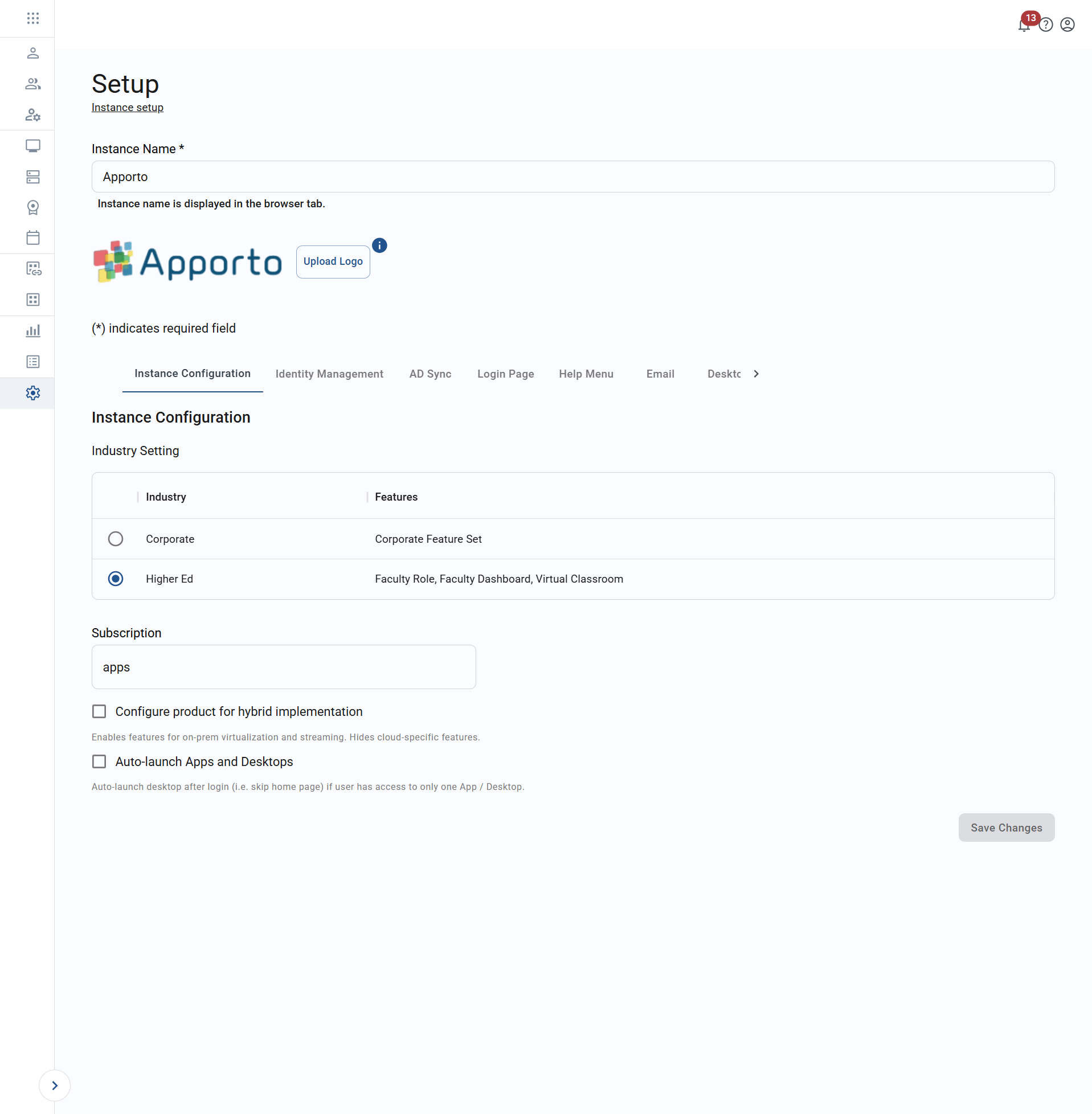
- Enter your desired values.
- Click save changes to commit.
Related articles
- Viewing users
- Adding a user
- Editing a user
- Configuring Active Directory (AD) synchronization
- Configuring identity management settings
- Apporto NextGen On-Premises Deployment Guide
Related to
Comments
0 comments
Please sign in to leave a comment.